Dexterity Sheets Download

Dexterity Design Services · the office spreadsheet

Your team's spreadsheet.Live, together, on the office network.

Open the line list, the MTO or the budget from wherever it is saved and click Share. Your team edits it with you live, your file keeps everyone's changes, and every change carries the name of the person who made it.

  • No administrator rights needed
  • Updates itself from the office server
  • Opens and saves Excel .xlsx files
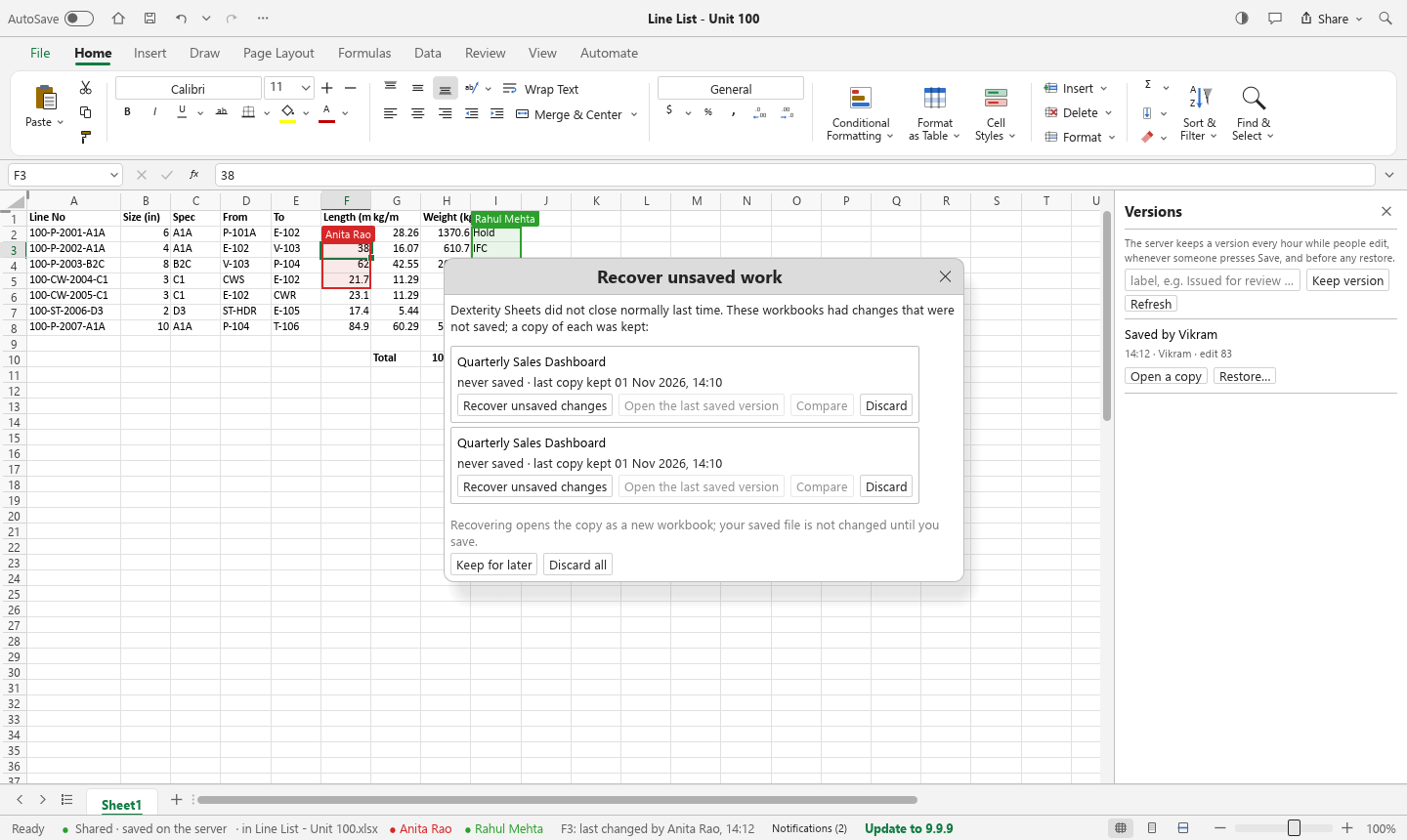
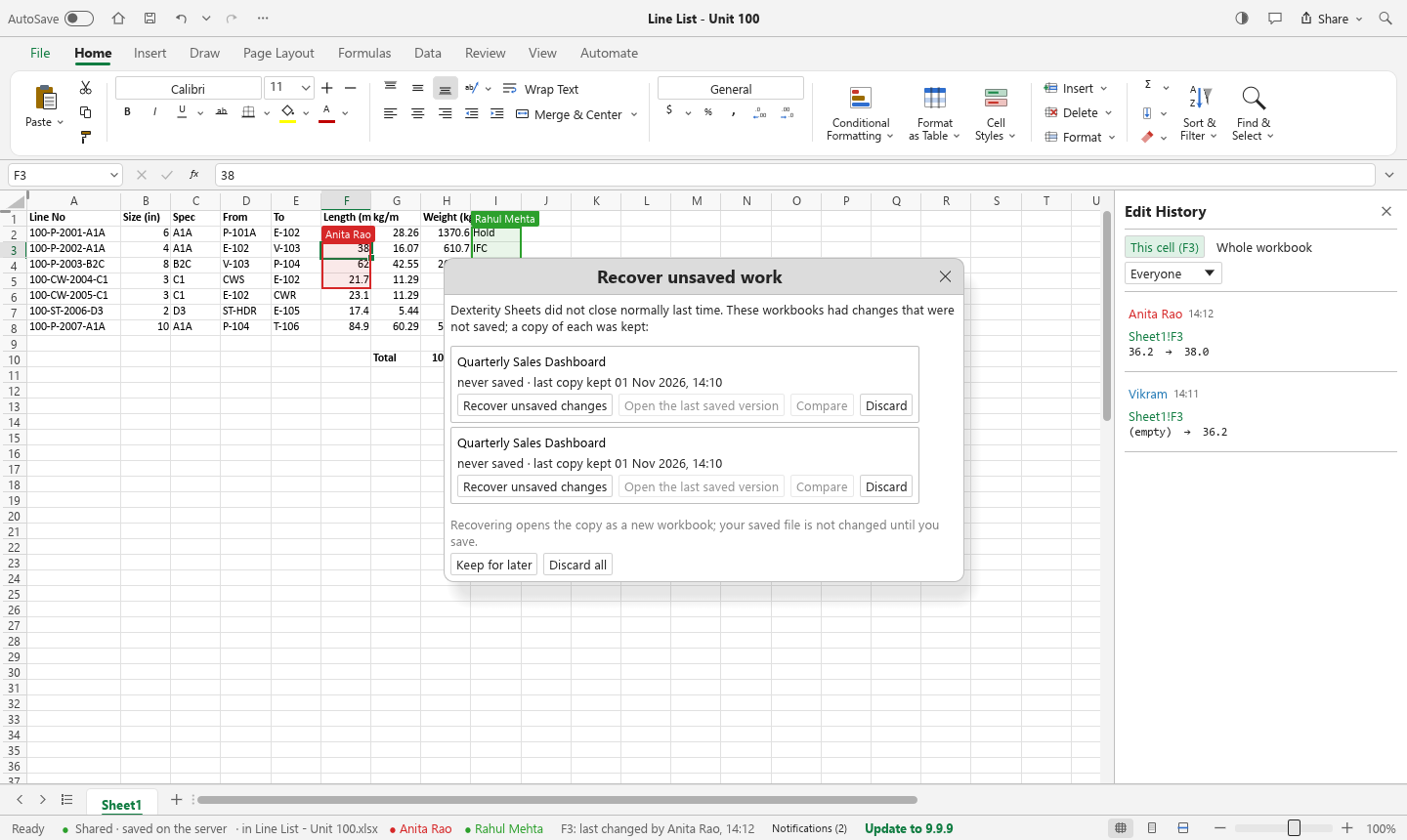
A shared line list open in Dexterity Sheets. Anita Rao's selection is outlined in red and Rahul Mehta's in green, each with a name tag. The Edit History pane on the right lists who changed cell F3 and when, and the status bar says the workbook is shared and saved.

At a glance

One workbook. The whole team. No more copies.

No more “who has the file open?”, no emailed copies, no line_list_final_v3_RK.xlsx. Everyone works in the same workbook, and it remembers everything.

  • Edit together, live: changes show up on everyone's screen at once.
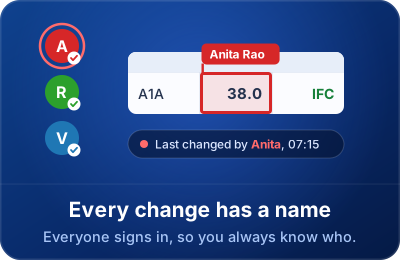
  • Every change has a name: everyone signs in, so you always know who changed what.
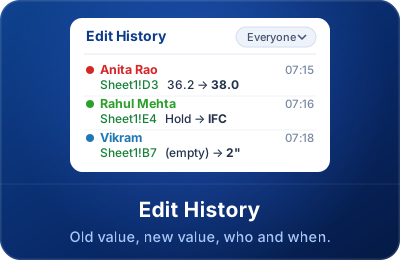
  • Edit History: the old value, the new value, who changed it and when.
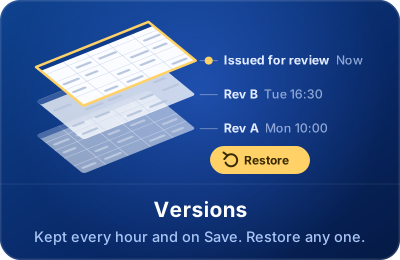
  • Versions: kept every hour and on Save, and any one can be restored.
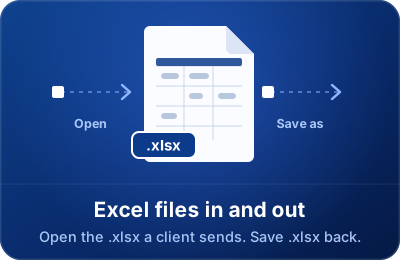
  • Excel files in and out: open the .xlsx a client sends and save .xlsx back.
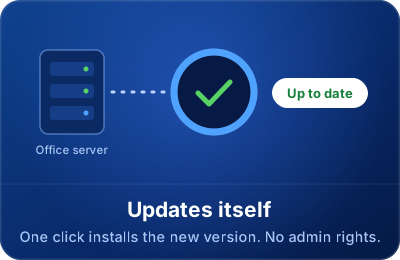
  • Updates itself: one click installs the new version, no administrator rights needed.

How it works

Up and running in three steps

Your IT person sets up the office server once. After that, this is all anyone needs to do.

  1. Install

    Download the setup and run it. It installs just for you, so you do not need an administrator.

  2. Sign in

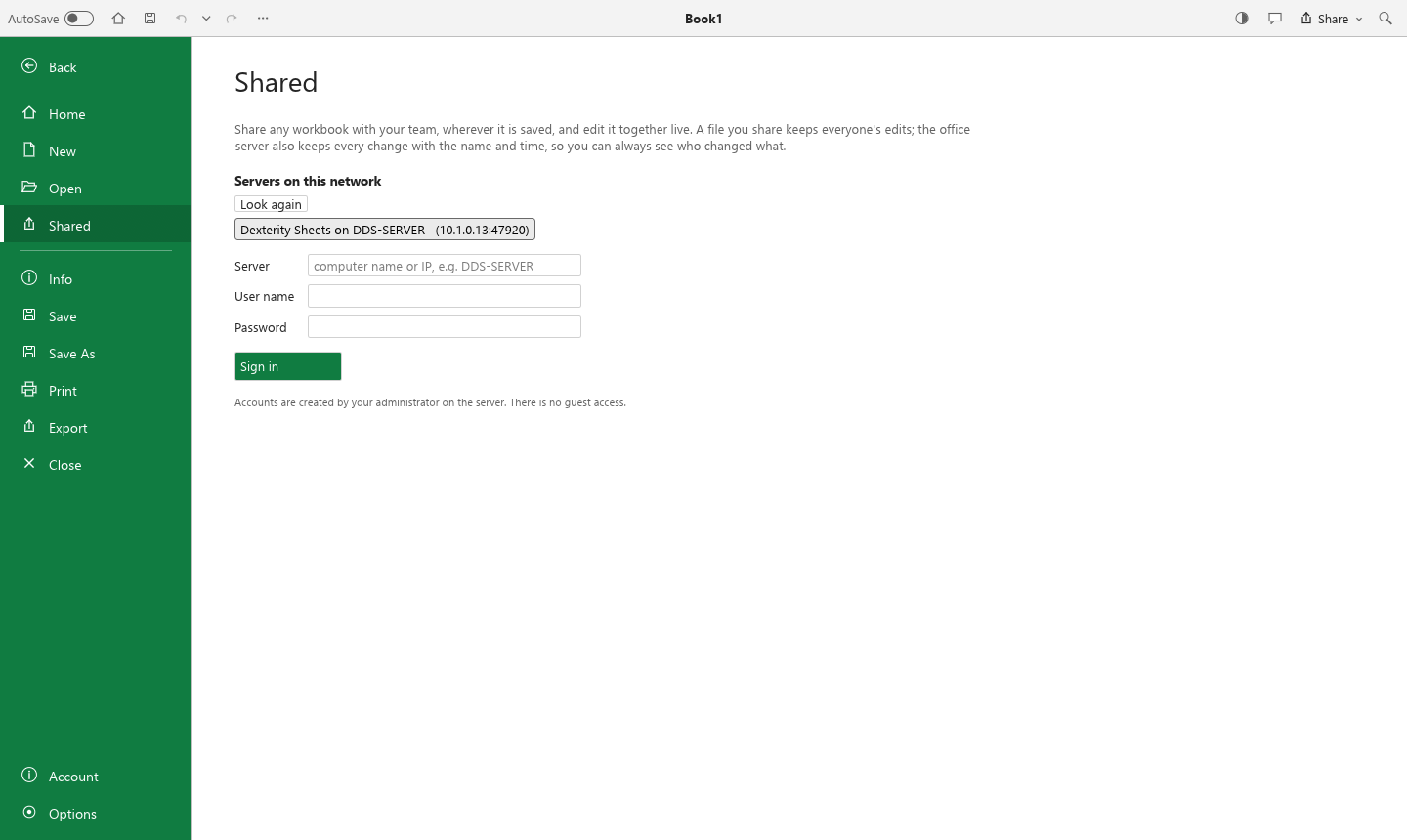
    Open File › Shared. The office server shows up on its own. Type the user name and password IT gave you.

  3. Share and edit together

    Open any file from your folder or the network drive and click Share › Share…. Everyone's edits appear live, and your file keeps them.

What it does for you

Built for a design office that shares its numbers

Live editing

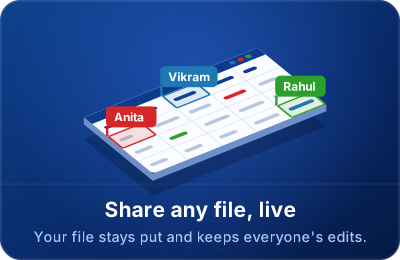
Share any file, from where it is saved

Open a workbook from your D: drive, a project folder or the network drive and share it. It stays right where it is: your team edits it with you live, and the file is saved with everyone's changes as they happen. Other people's selected cells are outlined in their colour with their name.

  • No waiting for someone to close the file, no emailed copies
  • Someone opens the same file? They join you, so it never splits into two versions
  • Stop sharing hands the file back with every edit in it
  • Network dropped? Keep typing. Your edits wait and go through when it comes back.
  • Undo takes back your edits, never a colleague's
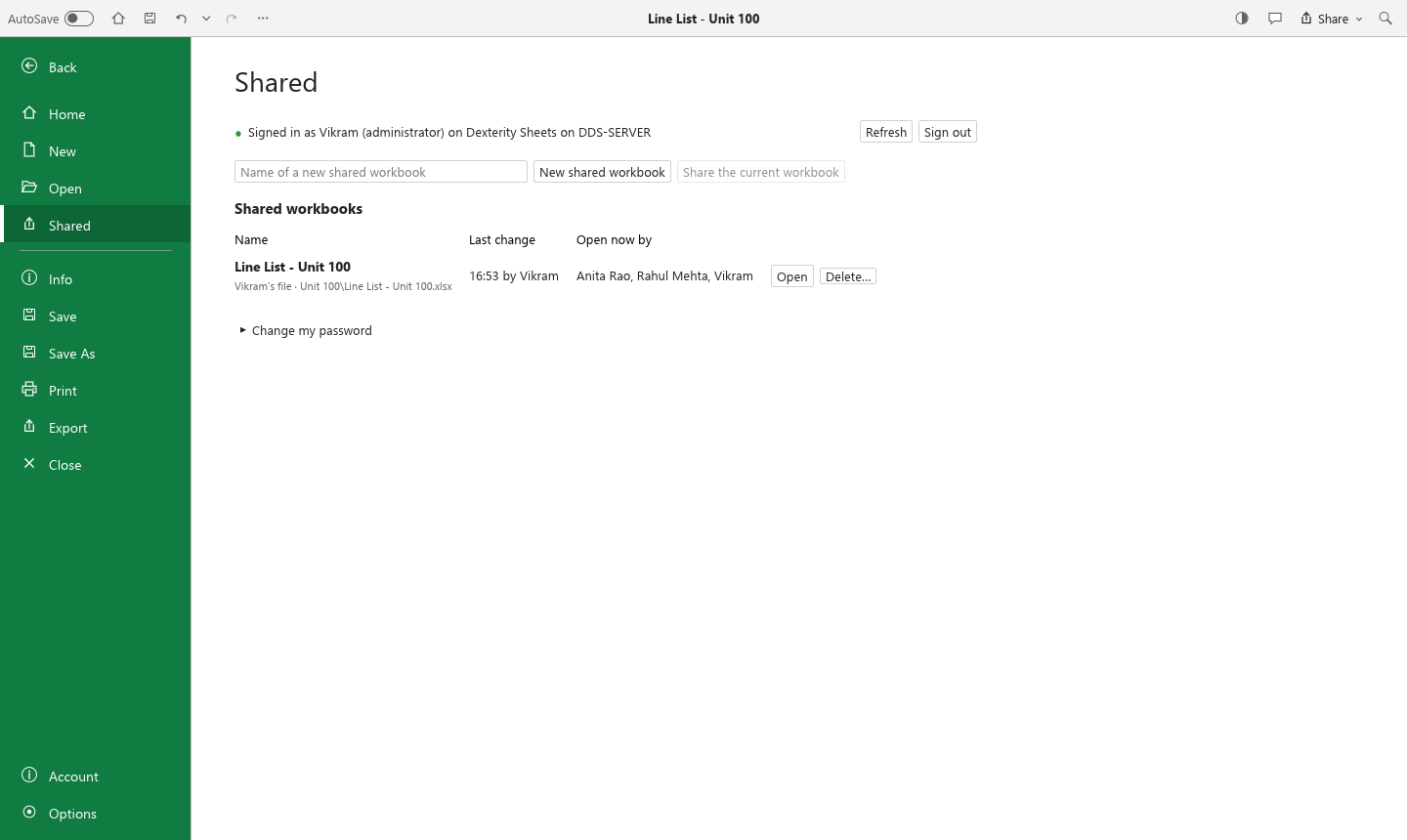
File › Shared in Dexterity Sheets: signed in to the office server, a list of the workbooks the team is sharing with the last change and who has each one open right now.
File › Shared: everything your team is sharing, whose file it is, who changed it last, and who has it open now.

Named accounts

Everyone signs in, so every change has a name

Shared workbooks need a named account. There are no guests and no anonymous edits, so the workbook can always answer: who changed this cell, when, and what was it before?

  • The office server is found on the network by itself
  • The status bar shows who last changed the cell you are on
  • IT decides who can edit and who can only view
  • Share with the whole office or with named people, as editors or viewers, until a date you choose
  • Copy a link into a chat: it opens the spreadsheet in the app, and a Windows notification tells people it was shared with them
  • Type @ in a comment to ask a colleague: they are notified and taken straight to the cell
The sign-in page of Dexterity Sheets listing the office server found on the network, with server, user name and password fields.
Sign in once. The app remembers the server and your user name.

Edit History

See every change: old value, new value, who and when

Click the “last changed by” note in the status bar, or open Review › Edit History (Excel’s Show Changes). You get the story of one cell or of the whole workbook, and you can filter it by person.

  • Values that only recalculated are never blamed on anyone
  • Useful when a client asks “who changed this length, and when?”
The Edit History pane next to a line list: Anita Rao changed Sheet1 F3 from 36.2 to 38.0 at 07:15, and Vikram changed it from empty to 36.2 at 07:15.
Edit History for cell F3: Anita changed 36.2 to 38.0, Vikram typed the first value.

Versions

Go back to any earlier version

The server keeps a version every hour while people work, every time someone presses Save, and whenever you ask (“Issued for review Rev B”). Open any of them as a separate copy, or restore one for everyone.

  • Before any restore, the current state is kept too, so nothing is lost
  • Every edit reaches the server's disk before anyone else sees it
The Versions pane listing versions kept by the server, with labels, authors and edit numbers, each with Open a copy and Restore buttons.
Review › Versions: open a copy or restore it for everyone.

Excel files in and out

Clients send .xlsx. You send .xlsx back.

Open any Excel workbook, share it with the team, and use File › Save As to send an .xlsx copy out. Tables, charts, conditional formatting and more than 500 functions all work, and Indian number formats like 12,34,567 and dd-mm dates follow your Windows settings, just as Excel does on your PC.

  • Files we write open in Excel with no repair prompts in our tests
  • Excel recalculating our files gives the same numbers
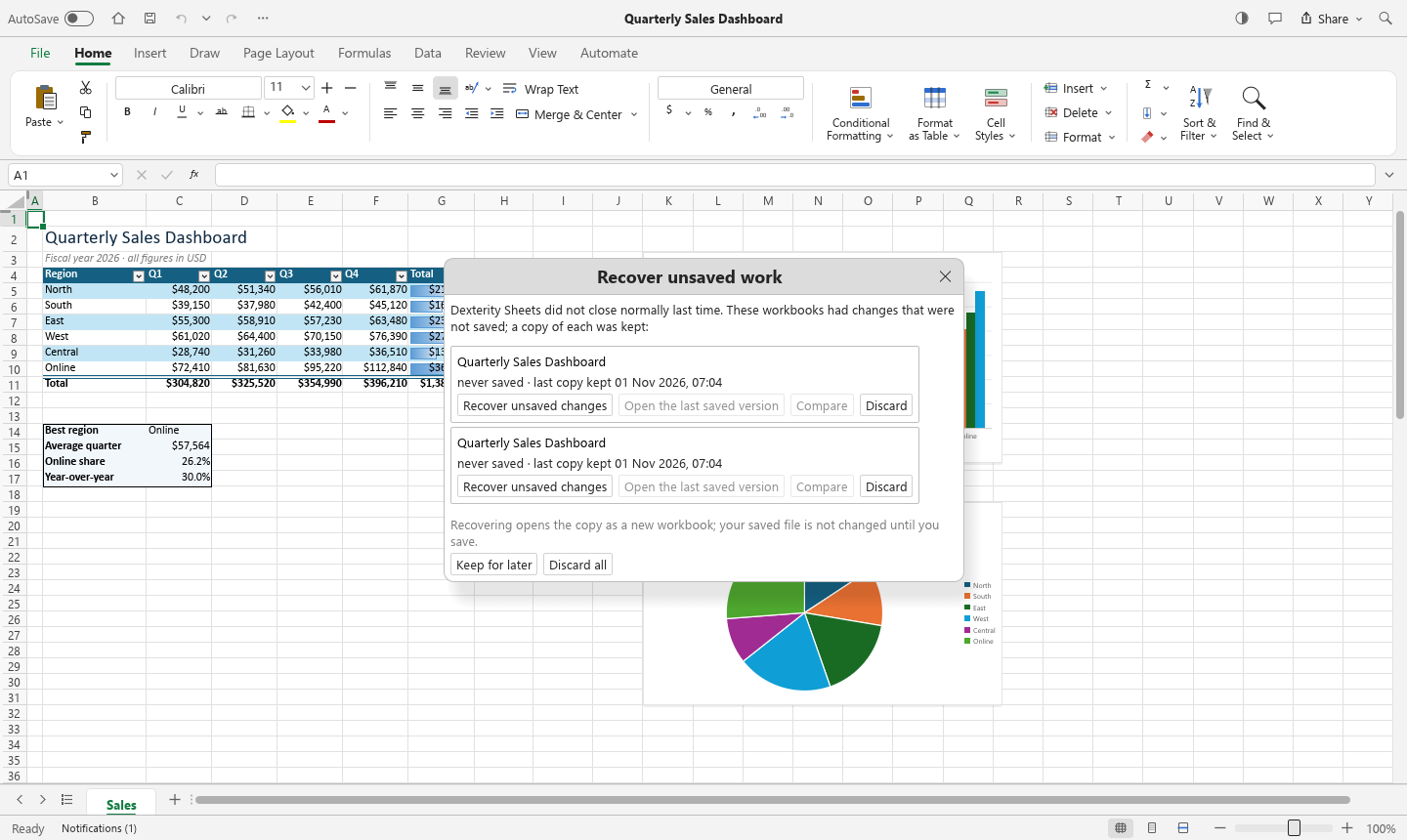
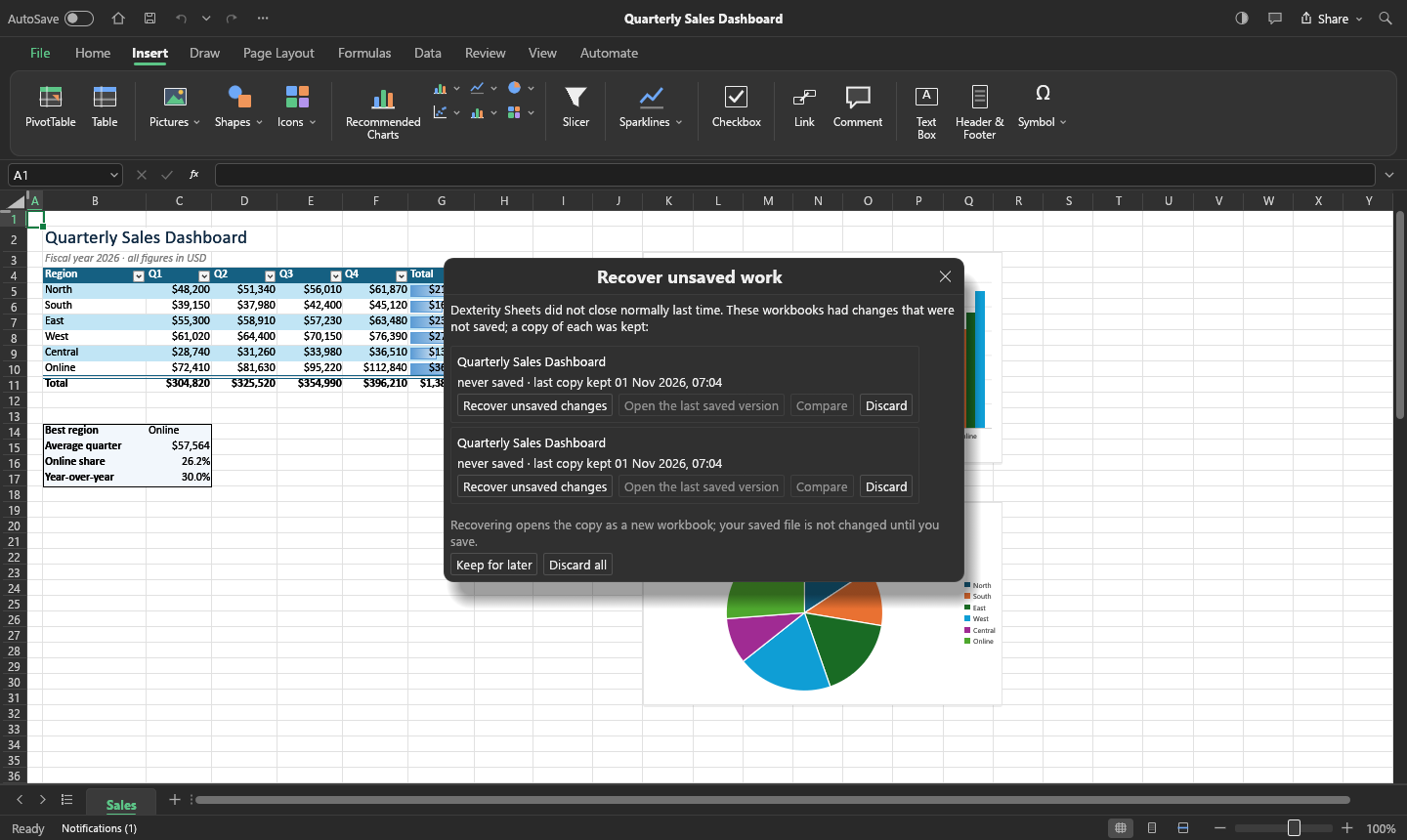
A quarterly sales dashboard in Dexterity Sheets with a styled table, data bars, icon sets, sparklines, a clustered column chart and a pie chart.
A real spreadsheet: tables, charts, sparklines and conditional formatting.

Updates itself

Always the latest version, with one click

When a new version is out, every running copy shows Update to … in the status bar. Click Update now: it downloads from the office server, checks the file and installs itself, then reopens. Shared work is already saved on the server, so nothing is lost.

  • No administrator rights needed
  • Office PCs need no internet access: the office server brings the update. A PC without a server reads the releases page itself.
  • Something wrong with a new version? Automate › Roll Back Version in one click (your workbooks are untouched), and tell IT which feature broke
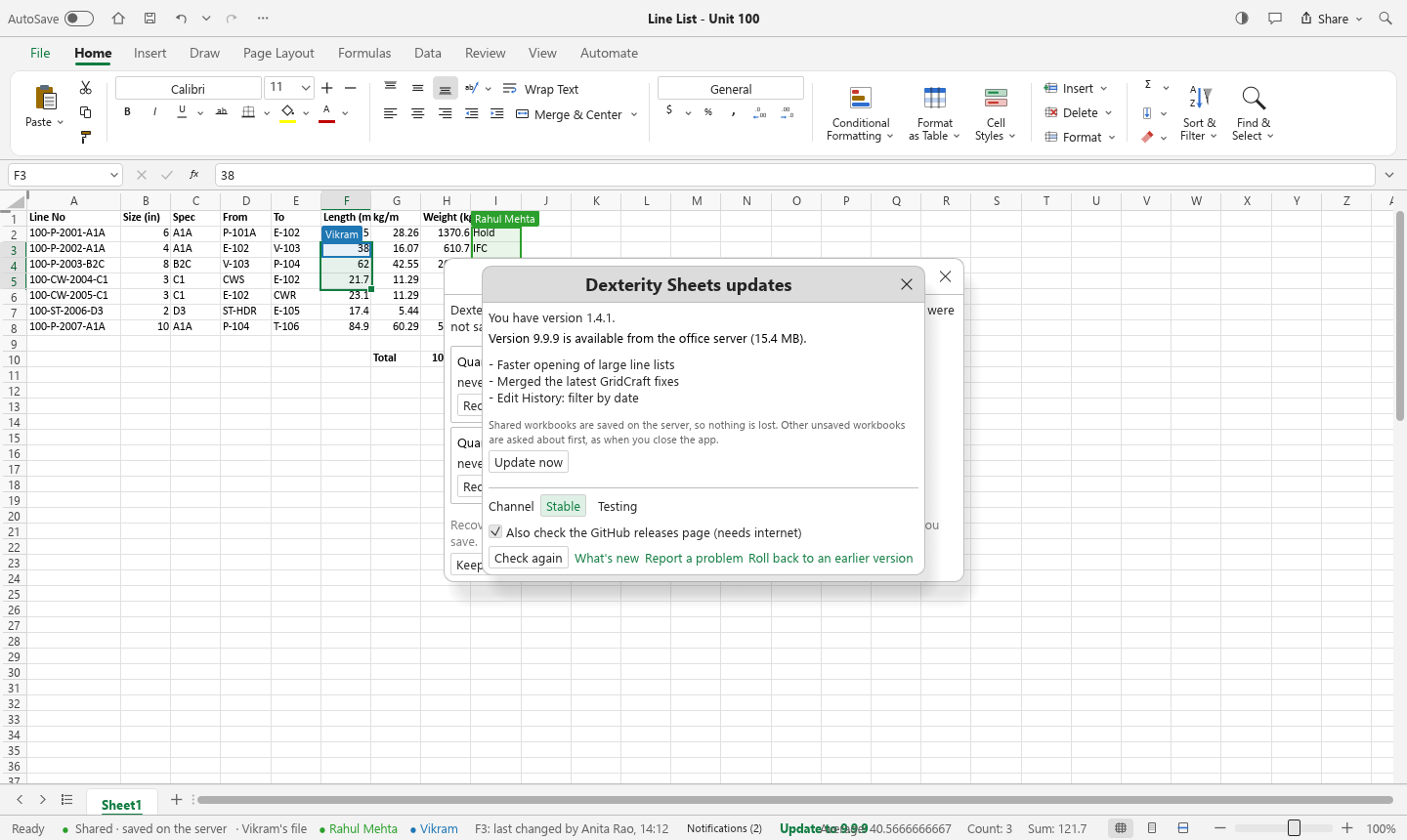
The Dexterity Sheets updates dialog: a newer version is available with its release notes and an Update now button; the status bar shows Update to 9.9.9.
The update dialog: what is new, and one button.

Get Dexterity Sheets

Version 1.4.1 · released 1 November 2026 · Windows 10 and 11 (64-bit)

Download for WindowsDexteritySheets-Setup.exe

Double-click the file you downloaded and follow the steps. No administrator rights needed. After that, Dexterity Sheets keeps itself up to date from the office server.

What's new in 1.4.1

  • Brings in the latest fixes and features of official GridCraft (listed in the release notes on GitHub). Nothing else changed in Dexterity Sheets.
  • Everything in 1.4.1, including what came from official GridCraft

Other formats

The MSI installer (for IT tools that deploy software), a portable copy that runs without installing, and checksums.

All files of the latest release

For the IT person: the office server

One always-on office PC passes edits between PCs and keeps every change and version. Run DexSheetsServer-Setup.exe from the same page: it installs the server as a Windows service and opens the Server Manager, where you add people one by one, paste them from Excel, or import a filled-in template. Its dashboard shows which version each PC runs, problem reports by version, failed updates and crashes, and lets you hold back or block a release. No commands to type.

Server setup guide

Questions

Good to know

Do I need administrator rights to install it?

No. The setup installs Dexterity Sheets just for your Windows account, so you can install it and update it yourself.

Can I open my existing Excel files?

Yes, from wherever they are saved. Open the file as usual and click Share › Share… to work on it with others: it stays in its folder and keeps everyone's edits. To send a file to a client, use File › Save As and pick .xlsx. Excel opens those files without complaint.

Do I still need to press Save?

Not in a shared workbook. Every change reaches the office server as you make it, and a file you shared is saved with everyone's edits a moment after each change. Ctrl+S saves the file at once and keeps a named version you can go back to later.

What if two people change the same cell?

The server puts the two changes in order and the later one wins. Both people are told who changed the cell and which value was kept, everyone ends up seeing exactly the same thing, and Edit History keeps both, so nothing disappears without a trace. Changes to different cells never get in each other's way.

What happens if the network drops?

Keep working. Your edits are kept on your PC and the status bar shows how many are waiting. They are sent as soon as the office server can be reached again.

Can a colleague undo my work by mistake?

No. Undo only takes back your own edits. And if something does go wrong, any earlier version can be opened as a copy or restored.

How do I get an account?

Ask your IT person or office administrator. Accounts are created on the office server; there is no sign-up form and no guest access. IT can make you an editor, or a viewer who can only read.

Is anything sent to the internet or the cloud?

No. Your files stay in your folders, and the office server on your own network passes edits between PCs and keeps the history. There is no cloud service, no subscription and no tracking. With an office server your PC does not even need internet access to get updates; without one, the app reads only its own GitHub releases page, and you can turn that off.

Does it work on a Mac or at home?

Dexterity Sheets is made for Windows 10 and 11 PCs in the office. Shared workbooks need the office network; on its own the app opens and saves .xlsx files anywhere.

Under the hood

A native Windows app written in Rust, built on GridCraft 0.14.2, an open-source, Excel-compatible spreadsheet engine. Dexterity adds live co-authoring over the office LAN: a small server program, named accounts, an audit trail of every cell change, versions and update distribution. Fixes from GridCraft flow in automatically, are tested, and are released through the built-in updater.